


How to Clear Cache on iPhone?

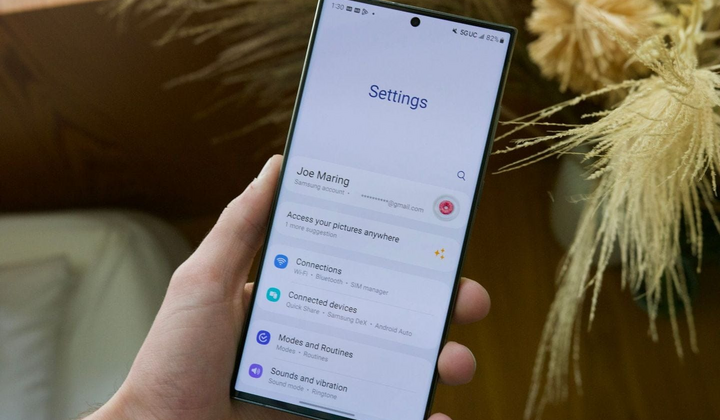
Cache on a smartphone is reserved space on the built-in storage for temporary files of mobile applications and various services. Using it helps improve device performance and speeds up loading web pages and images. However, when too many files accumulate in the cache memory, the system starts to lag.
To avoid such problems, it is necessary to periodically clear the cache. This is especially true for those who love to scroll through news feeds and view photos on social networks.
In this article, we will share several effective ways to free up space on the iPhone's memory. At the Citrus electronics store, anyone can buy an iPhone 15 Pro and other versions of the series.
1. Deleting Unused Apps
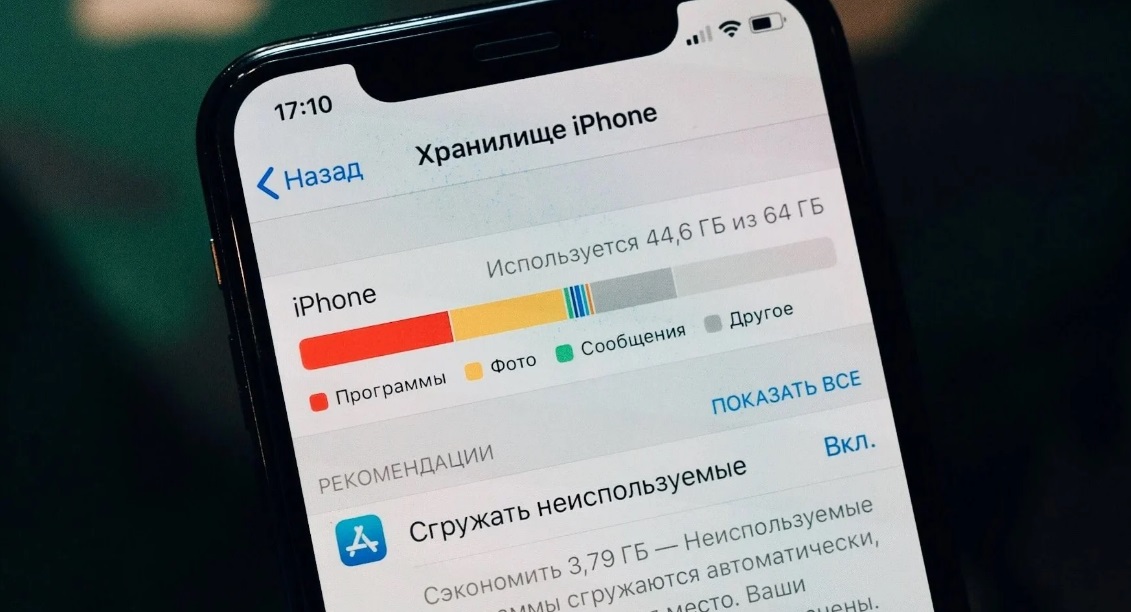
To free up storage from unnecessary data, we recommend first dealing with the applications. In the main settings menu, go to the 'General' section, then select 'iPhone Storage.'
For rarely used apps, there are two options: unload or delete. In the first case, temporary files and personal settings will remain in memory, and in the second, the app will be completely removed.
2. Clearing the Web Browser Cache
iOS comes with the Safari browser, which is notable for storing temporary files. When too many accumulate, this can slow down task execution in the system.
To clear the cache, go to the Safari section in the main menu of the phone, then select 'Clear History and Data' and confirm the action. Please note that saved passwords and bank card information will also be deleted.
3. Optimizing Images
The functionality of Apple's OS allows compressing images and photos stored in memory. This way, you can achieve a noticeable increase in useful space, while the quality of the photos does not deteriorate significantly. If desired, you can download their original versions from the official iCloud cloud service.
4. Deleting Unnecessary Audio Files
Most applications, including 'Podcasts,' store audio files in the cache, which can take up a significant amount of disk space when combined. In the 'iPhone Storage' menu, you need to manually specify the tracks to delete for each app. This method is the most labor-intensive but very effective.
5. Tidying Up in Messengers
In Telegram, there is a specific section 'Memory Usage,' which offers the option 'Clear Cache.' WhatsApp has a convenient tool for 'Managing Storage,' and in Viber, you can disable saving media files to the gallery.
As for Instagram, clearing the temporary storage requires reinstalling the app. It is recommended to save the login data for the account beforehand.
Be Careful
In the App Store, there are software utilities that offer the ability to clear all cache 'with one click.' Keep in mind that there is a risk of losing useful data in this case.