

7 Reasons Your Laptop Touchpad Isn’t Working – No Rush to the Repair Shop

7 Reasons Your Laptop Touchpad Isn’t Working – No Rush to the Repair Shop
According to НВ — Техно: A guide published on June 16 at 04:55 outlines seven common causes behind a non-responsive laptop touchpad and offers practical fixes to try before heading to a service center. Touchpad issues can be frustrating, but many have simple solutions you can handle yourself.
- Accidental deactivation via a keyboard shortcut
- Windows system settings
- Tablet mode being active
- A dirty touchpad surface
- Driver-related problems
- Low battery charge
- BIOS configuration
If none of these approaches work, the issue may stem from a hardware failure.
A Closer Look at Each Cause
The first reason a touchpad might stop responding is an accidental press of a dedicated key on the keyboard. Laptops typically include a function key (often F1, F3, F7, or another) used in combination with the Fn key to toggle the touchpad on or off.
The second cause lies within Windows settings. In Windows 10, navigate to Settings -> Devices -> Touchpad. In Windows 11, go to Bluetooth & devices -> Touchpad. These settings also include an option to automatically disable the touchpad when an external mouse is connected, which could explain the lack of response.
Third, tablet mode may be the culprit, especially on 2-in-1 devices. Switching to tablet mode automatically locks the touchpad to prevent accidental input. Fourth, a dirty touchpad surface can interfere with its function. Modern touchpads are capacitive and rely on detecting a microelectric charge, so grime or residue can disrupt normal operation.
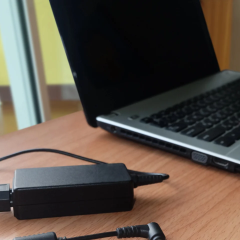
The fifth reason involves driver issues. To check, open Device Manager from the Start menu. Always download drivers from the laptop manufacturer’s official website-you can find the model number on a sticker on the bottom panel. Sixth, a low battery can cause problems. When the charge drops critically low, some laptops disable the touchpad to conserve power.
The seventh and final reason is BIOS settings. To access BIOS, press F2, Del, or Esc during startup. If none of the above steps resolve the issue, the problem is likely hardware-related. This could be due to a damaged ribbon cable or a worn-out sensor, both of which require professional repair.
By understanding these common causes, laptop users can often diagnose and fix touchpad problems on their own, saving both time and money on service costs. However, if the issue persists, seeking professional help is advisable, as hardware faults may need specialized attention.

Read also