

Common Causes of Smartphone Wi-Fi Issues and How to Diagnose and Fix Them Yourself

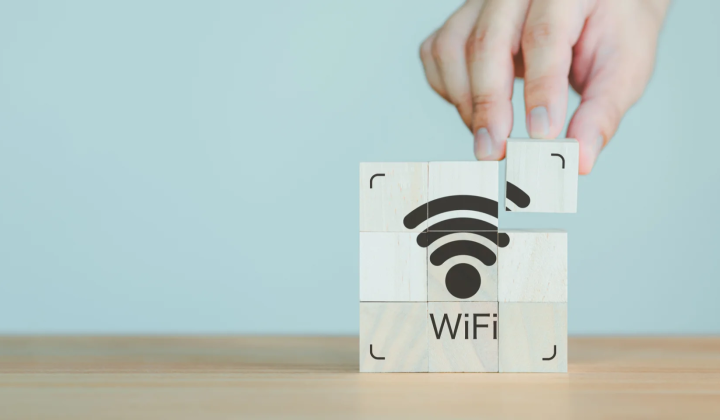
Understanding and Resolving Smartphone Wi-Fi Connection Problems
According to НВ — Техно: Smartphones often encounter difficulties connecting to home Wi-Fi networks due to various factors, including network setting conflicts, software glitches following system updates, IP address assignment failures, or temporary device malfunctions. This guide explores the main reasons behind these connection problems and offers practical solutions to resolve them independently.
If your smartphone fails to connect to your home Wi-Fi, start by testing the router with another device. Should other devices connect without trouble, try the following steps:
- Restart the router;
- Inspect all cables for secure connections;
- Review your Wi-Fi broadcast settings;
- Switch the Wi-Fi channel;
- Reset router settings if necessary.
Additionally, ensure airplane mode is turned off on your phone, reboot it, and attempt to reconnect.
When facing issues with previously connected networks, it’s advisable to delete the saved network from your device, reboot your smartphone, and reconnect. Authentication errors often stem from configuration conflicts or incorrect passwords. To verify or retrieve your Wi-Fi password, log into your router by entering its IP address (commonly 192.168.0.0) into a browser, then access the wireless security section to find the WPA-PSK key.
If your connection stalls during the IP address assignment phase, confirm that your device is set to obtain an IP automatically via DHCP. Android phones sometimes lose Wi-Fi access after firmware updates, which can typically be fixed by removing the network and reconnecting. When configuring your router, consider these tips:
- Avoid using Cyrillic characters in your network name (SSID);
- Select the correct region for your router;
- Use AES encryption for better compatibility;
- Set the Wi-Fi channel to automatic mode.
If your phone connects to Wi-Fi but can’t access the internet, check that the date and time are accurate, configure Google DNS servers, and disable any proxy settings. In cases where your phone cannot share Wi-Fi with other devices, frequency band incompatibility may be the culprit. For Android phones, switch the hotspot to the 2.4 GHz band, while iPhones should enable 'Maximum Compatibility' mode in hotspot settings.
Should none of these troubleshooting steps restore your Wi-Fi connection, performing a factory reset on your smartphone might be necessary. However, if issues persist post-reset, this could indicate a hardware defect. In such scenarios, contacting a professional repair center like Skeleton is recommended, where experts can diagnose the problem and replace the Wi-Fi module or other components if needed.
Summary
Wi-Fi connectivity problems are a frequent challenge for smartphone users, ranging from simple configuration errors to complex hardware faults. Being aware of common causes and fixes can significantly speed up regaining internet access. Since mobile technology is continuously evolving, software updates may impact connection stability, making it essential to stay informed about updates and manufacturer recommendations.
In addition to troubleshooting Wi-Fi connectivity issues, it's essential to consider how to maintain your internet access during unexpected power outages. Having a backup power solution for your router can ensure that you stay connected even when the lights go out. For practical advice on setting up your network to remain online during such disruptions, check out our guide on keeping your internet active during power interruptions.

Read also